
Installation
This guide walks through downloading, installing, and verifying Meiporul on Windows, macOS, and Linux. Meiporul is distributed as a native desktop app with no account, license key, or trial period — every download is the full product.
Version
2.4.1
Released
August 15, 2026
License
Free, all platforms
Reading time
~4 min
System Requirements
Meiporul is lightweight relative to comparable database GUIs, but the minimums below ensure smooth performance on large result sets and schema diagrams.
| Platform | OS Version | RAM | Disk Space | Architecture |
|---|---|---|---|---|
| Windows | Windows 10 (64-bit) or later | 4 GB minimum, 8 GB recommended | 350 MB free | x64 |
| macOS | 12 Monterey or later | 4 GB minimum, 8 GB recommended | 350 MB free | Apple Silicon & Intel |
| Linux | Ubuntu 20.04+ or equivalent | 4 GB minimum, 8 GB recommended | 400 MB free | x64 |
Installation Steps
Select your platform below. Each installer is code-signed where the platform supports it; on first launch, your OS may still show a standard "unrecognized developer" prompt for new applications, which is expected and covered in the notes below.
Download the installer
Download the file and double-click it to open the installer.
Start the Setup
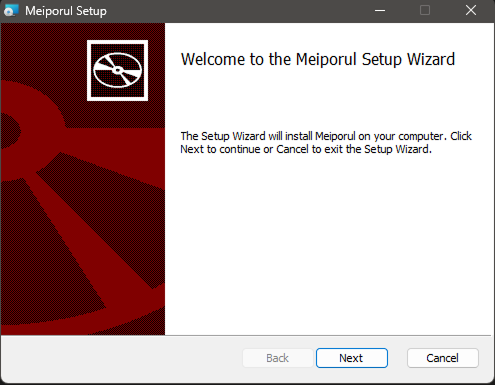
Open the Meiporul installer and click Next to begin the installation.
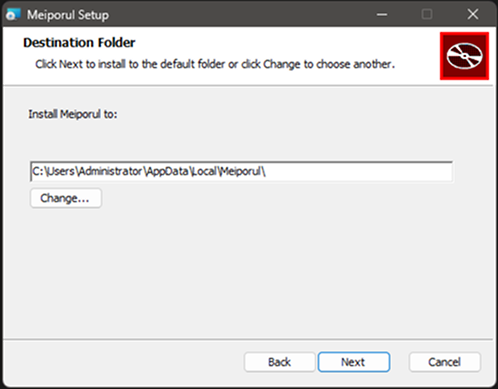
Choose the Installation Folder
Select the folder where you want to install Meiporul, or keep the default location, then click Next.
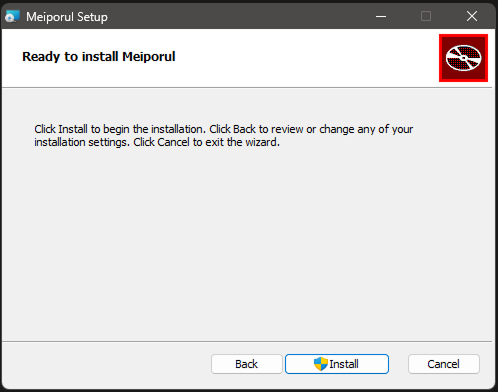
Confirm Installation
Review the installation settings and click Install to start installing Meiporul.
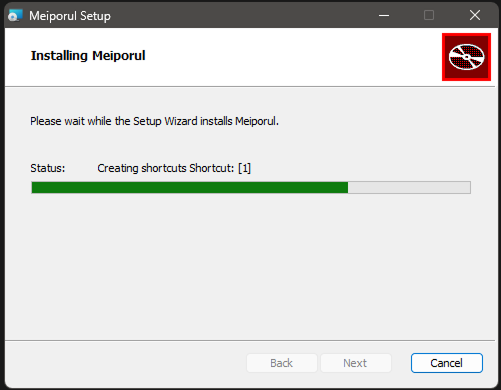
Wait for Installation to Complete
The setup will install Meiporul and create the required shortcuts. Please wait until the process finishes.
Launch Meiporul
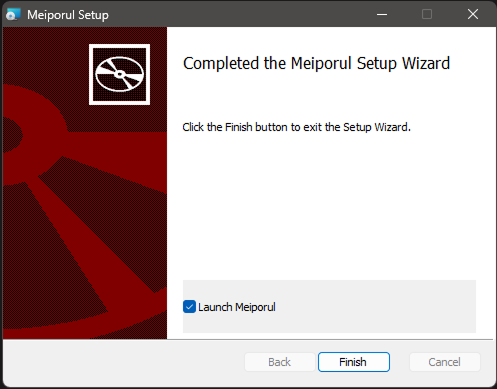
Once installation is complete, keep Launch Meiporul checked and click Finish to open the application.
Verify the Installation
Once Meiporul opens, confirm the following before proceeding to Quickstart.
Expected Result
Once installed, verify that Meiporul launches correctly before connecting your first database.
- ✓The connection screen loads with tabs for MongoDB, SQL, Redis, and API Testing.
- ✓No sign-in, account, or license prompt appears anywhere in the flow.
- ✓The version number in
Help → Aboutmatches 2.4.1.
If the app doesn't open on the first try, restart your machine once and relaunch. This resolves the majority of first-run issues across all three platforms.
Was this page helpful?
Help us improve the documentation by sharing your feedback.